If you’re a food blogger or someone who loves photographing dishes, you know how much editing can elevate your images. The right adjustments make food look vibrant, fresh and mouthwatering — the kind of photos that draw readers in, boost clicks and inspire people to try your recipes. While capturing a strong shot in-camera is always best, editing software like Lightroom and Photoshop can transform good images into great ones.
I’ve been using Adobe Photoshop and Lightroom for years, and both have become essential parts of my workflow. Recently I’ve been obsessed with Lightroom, so here are practical, easy-to-follow tips to get beautiful food photos with just a few adjustments.
First thing’s first, let’s import these photos into Lightroom!
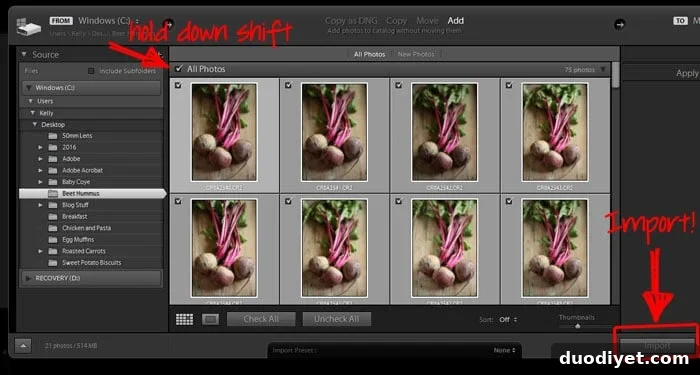
When importing, choose only the photos you want to work with. A quick trick is to select the first image, hold Shift, then click the last image you want — this selects a contiguous group for import. After importing, organize the photos into folders or collections so you can find them easily.
Editing Photos
Before you edit, go through and remove any obvious rejects so you’re left with just the best frames. In Lightroom you can flag or delete images; I usually remove ones I won’t use so the editing process is faster.
Over time I learned that many of my food photos benefit from similar edits, so I save presets. Presets speed up editing and keep a consistent look across your portfolio. You can create and save multiple presets to apply a complete look with one click, or fine-tune individual sliders for each image.
Tilting and Cropping
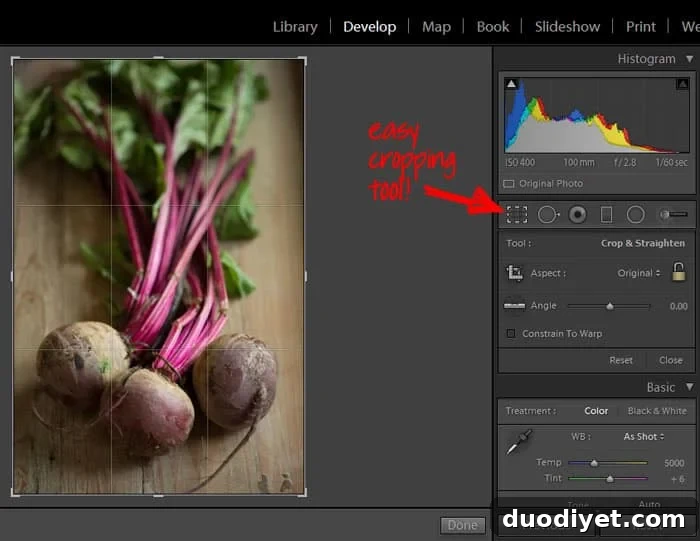
Switch to the Develop module to start editing. First check composition: crop or straighten if necessary to remove distracting edges or to focus on the most interesting part of the dish. A subtle crop can improve balance and direct the viewer’s eye to the main subject.
White Balance
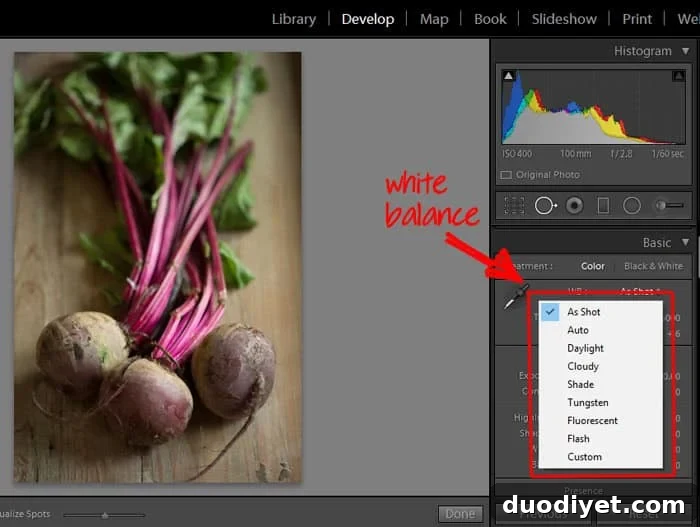
White balance is crucial for food photography. Natural light can be warm or cool, so correcting white balance in Lightroom ensures accurate colors. Try the eyedropper tool (white balance selector) to click a neutral tone, or experiment with presets like Daylight or Shade. If you captured white balance well in-camera you may keep it “as shot,” but don’t hesitate to tweak it for a truer result.
Basic Edits
After setting white balance, move to the Basic panel. Below are the common adjustments I use; values vary per image.
- Exposure: increase slightly to brighten the image, but avoid blowing out highlights.
- Contrast: a small boost helps colors pop.
- Highlights: reduce to recover detail in bright areas.
- Shadows: lift or darken to add depth and texture.
- Whites and Blacks: set the tonal range for proper contrast without clipping.
- Clarity: add a touch to enhance texture, especially for ingredients with interesting surfaces.
- Vibrance and Saturation: bump vibrance modestly to make colors pop while keeping them natural; be cautious with saturation.
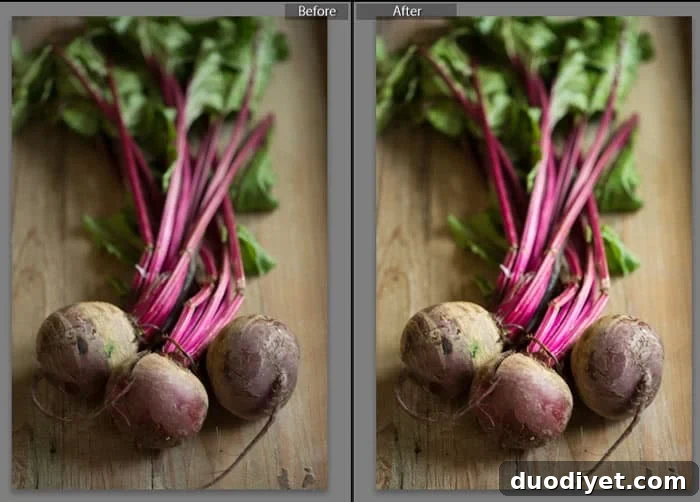
Lightroom’s before-and-after view is great for checking your changes. Once the basic balance looks right, move on to color-specific tweaks.
Specific Color Adjustments
Targeted color edits can make produce and garnishes look fresh and appealing. Use the HSL/Color panel to adjust Hue, Saturation and Luminance for individual color ranges. For leafy greens, lift the green hue or saturation to make leaves look fresher. For reddish or purple tones, adjust magenta and red sliders to reveal richer color without oversaturation. Lowering luminance in a color can restore depth where highlights wash it out.
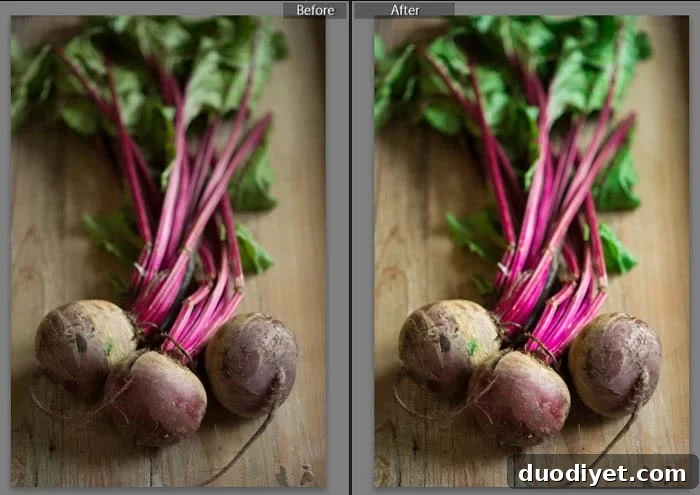
Careful color work prevents dull produce and enhances the natural appeal of ingredients.
Sharpening
Apply modest sharpening to emphasize texture. Don’t overdo it — too much sharpening creates halos and an artificial look. Lightroom’s sharpening controls let you set amount, radius and detail; Photoshop can complement this for advanced sharpening workflows.
Lightroom also offers tools like spot removal, adjustment brushes and graduated filters. These are useful for small cleanups, selective exposure adjustments or enhancing specific areas without affecting the whole photo.
Adobe Lightroom Mobile App
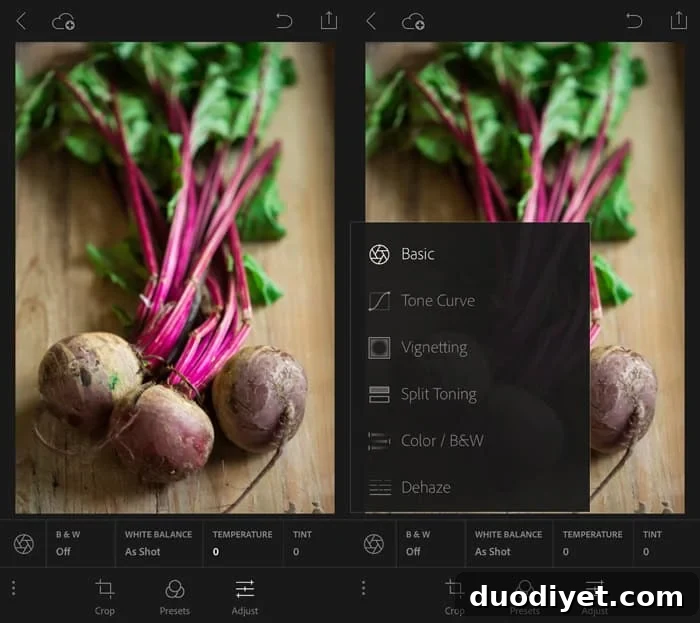
Lightroom’s mobile app brings many desktop editing features to your phone. You can import photos from your camera roll, capture images directly in the app, apply presets, adjust white balance, exposure, contrast and more. The app also syncs edits with desktop collections and saves previous adjustments, making it easy to edit and share images to social platforms on the go.
Creative Cloud Photography Plan
Adobe’s Creative Cloud Photography Plan includes Lightroom, the Lightroom mobile app and Photoshop. Many photographers find the plan valuable for access to both programs and cloud syncing. If you use Lightroom and Photoshop together, the combined workflow can deliver powerful results for food photography.
Giveaway
One lucky reader will win a full year of the Creative Cloud Photography Plan, including Lightroom, Photoshop and the mobile app — a valuable prize for anyone serious about creating beautiful food photography. Enter the giveaway for a chance to win.
If you have questions about these steps or want a tutorial focused on Photoshop techniques for food shots, let me know in the comments — I’m happy to share more tips. I’ve relied on Adobe tools for years and use both Lightroom and Photoshop together to achieve the best results.
This post is sponsored by Adobe. As always, all opinions are my own.