If you’re a food blogger or someone who loves photographing meals, you already know how vital editing is to creating bright, mouthwatering images. Great editing turns a good shot into an irresistible one—images that make readers pause, click, and want to try the recipe. While capturing the scene well in-camera is the first step, a few smart Lightroom edits can elevate color, contrast, and texture to showcase your dishes at their best.
I’ve been using Adobe Photoshop and Lightroom for years and rely on them for nearly all my food photography. Lightroom is especially fast and effective for consistent, appealing edits, so I’ll walk through a practical Lightroom workflow for food photos and share tips that save time while improving results.
First thing’s first, let’s import these photos into Lightroom!
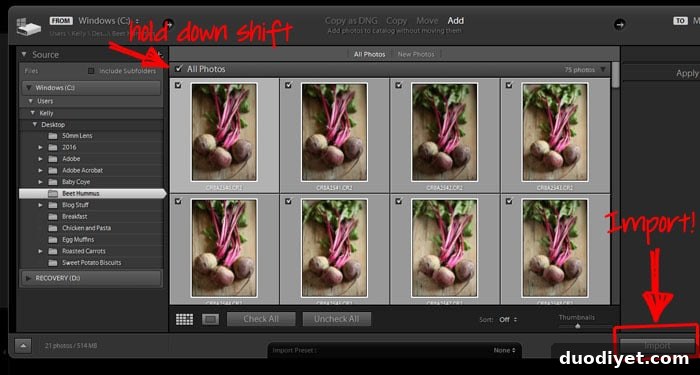
Here I’ve imported several shots of roasted beets I photographed for a hummus recipe. When you only want a subset of images from a folder, click the first image, hold Shift, click the last one you want, and import just that selection. After importing, create a folder or collection in Lightroom for easy organization and quick access.
Editing Photos
Once photos are imported, I usually delete obvious rejects so I can focus on the best frames. Select unwanted images and press Backspace, then choose “Remove” to keep your disk files intact but remove them from the catalog. With a clean selection, move to the Develop module to start refining exposure, color, and detail.
Because many food shots benefit from a similar style, I create and use Lightroom presets. Presets speed up editing and maintain visual consistency across your blog or social accounts. You can apply a preset as a starting point, then fine-tune individual settings for each photo.
Tilting and Cropping
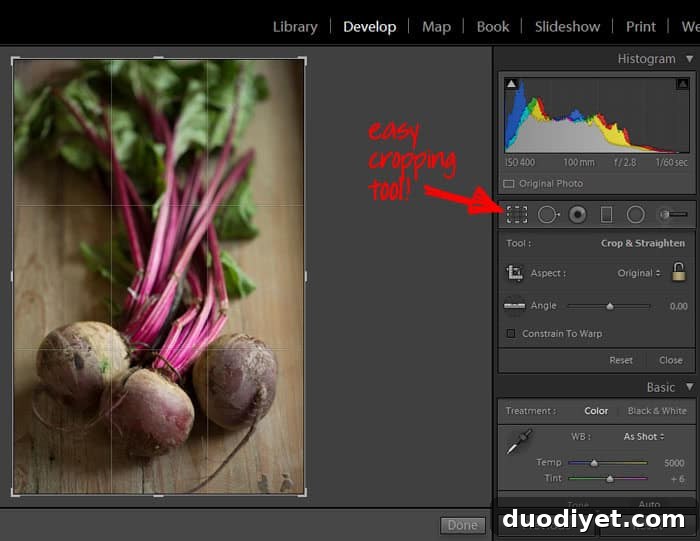
Under Develop, check composition first. Use the Crop and Straighten tools to remove distracting edges, improve framing, or correct a tilted horizon. A tighter crop can highlight texture or a key ingredient, while a slight rotation often improves balance.
White Balance
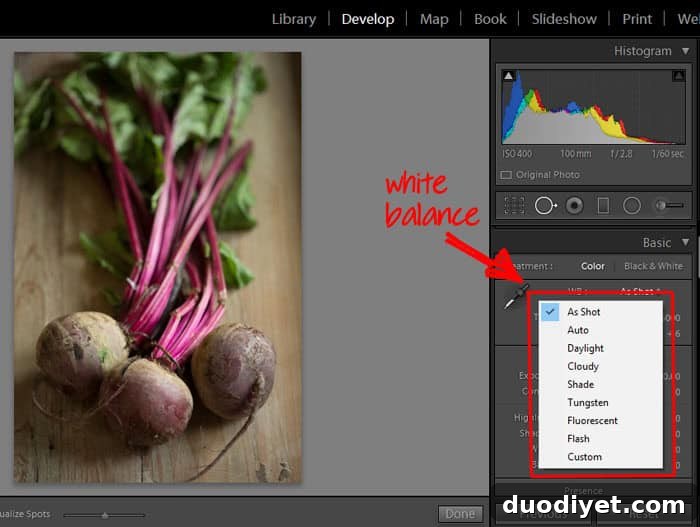
White balance is crucial for food photography—accurate color makes produce and sauces look appetizing. You’ll find White Balance in the Basic panel. If your camera captured a good balance, leave it on “As Shot.” Otherwise use the eyedropper to sample a neutral area or try presets like Daylight or Shade. Small shifts in temperature and tint can correct green or magenta casts and make colors pop naturally.
Basic Edits
After white balance, tackle core exposure and tone adjustments. These are my usual moves, though amounts depend on the image:
- Increase exposure slightly to brighten the image, but avoid blowing out highlights.
- Raise contrast a touch to make colors and shapes stand out.
- Reduce highlights to recover detail in bright areas, especially on glossy vegetables or sauces.
- Open shadows a little to reveal texture and depth in darker areas.
- Adjust whites and blacks carefully to control overall contrast without losing detail.
- Boost clarity subtly to add texture—use conservatively so the result stays natural.
- Bump vibrance more than saturation to enrich colors while preserving realism.
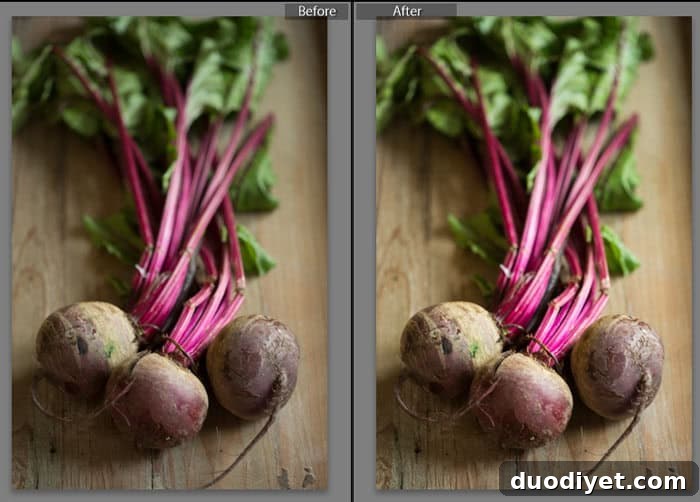
These adjustments brighten the beets, improve definition, and keep the image looking fresh. Lightroom’s before/after view helps you judge changes quickly.
Specific Color Adjustments
Targeted color edits are especially powerful for food photography. Use the HSL panel (Hue, Saturation, Luminance) to refine specific colors—great for leafy greens, herbs, and vibrant vegetables. For this beet photo I nudged the greens to a fresher hue, increased magenta saturation to deepen the beet color, and reduced magenta luminance to bring out richer tones without losing detail in highlights. These tweaks make produce look lively rather than flat or washed out.
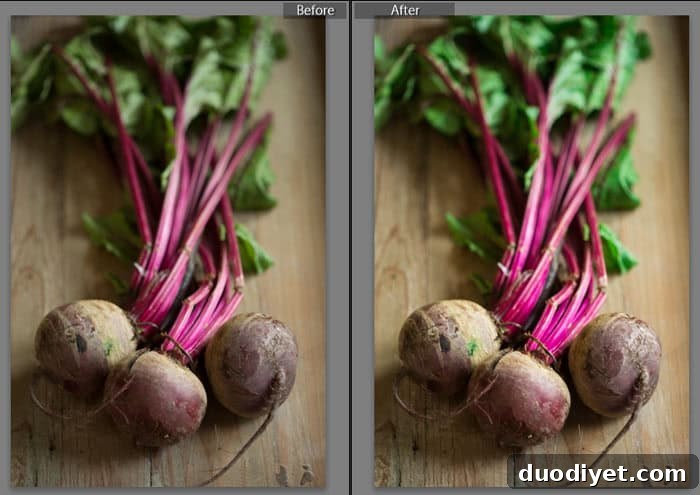
Careful HSL adjustments keep colors natural and appetizing—essential for food imagery that convinces readers the dish is worth making.
Sharpening
Finish with sharpening to enhance fine details like seed textures or herb edges. Don’t overdo it—too much sharpening creates halos and an artificial look. Use a moderate Amount and Radius, and consider masking so sharpening affects primarily edges rather than smooth areas like plates or backgrounds. For advanced detail work, you can refine sharpening further in Photoshop if needed.
Lightroom also includes useful tools like Spot Removal, Adjustment Brush, and graduated filters. These let you clean up crumbs, selectively brighten areas, or add subtle vignettes to draw attention to the food.
Adobe Lightroom Mobile App
Lightroom’s mobile app brings much of the desktop power to your phone—handy for Instagram posts and on-the-go editing. Highlights:
- Import images from your camera roll or sync collections from desktop Lightroom.
- Shoot directly from the app for better control over exposure and white balance.
- Use presets, crop, and the same basic adjustment tools to edit quickly on mobile.
- The app saves your edits so you can reuse settings and maintain a consistent feed.
- Share finished images directly to social platforms.
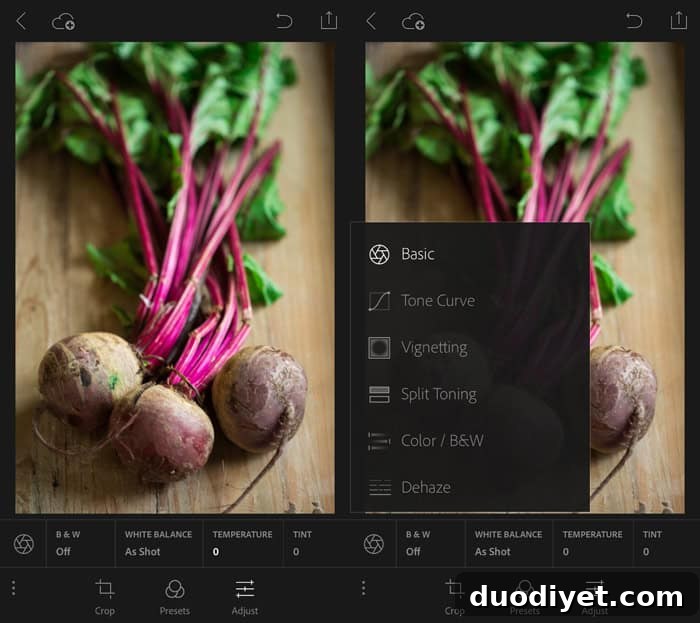
Adobe’s Creative Cloud Photography Plan bundles Lightroom, Lightroom Mobile, and Photoshop for a single monthly fee—making these tools accessible to bloggers and photographers who want professional editing features without a large upfront cost.
Giveaway
Adobe offered one lucky reader a chance to win a year of the Creative Cloud Photography Plan, which includes Lightroom, Photoshop, and mobile access. This kind of plan is a great way to try professional editing tools and streamline your food photography workflow.
If you have questions about any of these steps or want a focused Photoshop tutorial to complement Lightroom edits, leave a comment. I use both programs together because each has unique strengths that help create polished, appetizing food images.
This post is sponsored by Adobe. As always, all opinions are my own.